
History: CursWiki06_TraduccioCatWikiAdmin
Comparing version 7 with version 12
de http://doc.tikiwiki.org/tiki-index.php?page=Wiki+Admin  Wiki AdminTable of contents
Acces AdminPer a accedir a Administració, ves a Inici i, en el Menu (Principal), clica en "Admin (clica)".Seccions: Administració del quadre de Administració TikiTindràs accés al Quadre de Administració de Tiki Seccions, tal i com es veur en el següent gràfic:
Paràmetres de Wiki:: Wiki
WikiDes del quadre de Administració, clica sobre la icona de Wiki per mostrar el seu quadre de configuració corresponent, la part superior del qual té un aspecte semblant a aquest: 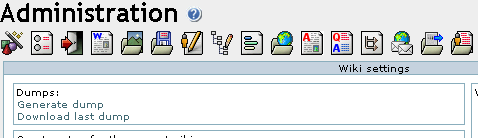
VolcatAquesta secció es pot fer servir per a generar/descarregar un volcat XHTML del teu Wiki que es podrà fer servir per navegar offline, distribuir el Wiki en un CD, presentacions fora del lloc de treball, etc.
Configuración de comentarios de Wiki
Adjuntos WikiUna página Wiki puede tener adjuntos. En este panel de control `puedes configurar si los adjuntos están parmitidos y dónde se almacenan los archivos. Puedes almacenar los archivos en una base de datos o en un directorio. La ruta del directoriopuede ser absoluta o relativa. A Wiki page can have attached files. In this panel you can configure whether attachments are allowed and where to store the files. You can store attachments in the database or a directory. The directory path can be absolute (example: /foo/bar/uploads/) or relative to the Tiki directory (example: files/).
 The trailing slash is mandatory.
Wiki Admin * Wiki Admin o Admin Access o Sections: Tiki Admin Panel o Wiki settings + Dumps + Create a tag for the current wiki + Restore the wiki + Remove a tag + Wiki comments settings + Wiki attachments + Export Wiki Pages + Remove unused pictures + Wiki Home Page + Wiki Discussion + Wiki Link Format + Wiki page list configuration + Wiki features # Sandbox # Last Changes # Dump # History # List Pages # Backlinks # Like pages # Rankings # Undo # Multiprint # PDF generation # Comments # Spellchecking # Minor Edits # Use templates # Warn on edit # Pictures # Use page description # Show page title # Cache Wiki pages # Footnotes # Users can save to notepad # Users can lock pages # Use WikiWords? # Page creators are admin of their pages # Table syntax # Automonospaced text # Uses Slideshow + Wiki History + Copyright Management + Wiki Watch Admin Access To access administration, go to Home Page and, on the Menu, click on "Admin (click!)". Sections: Tiki Admin Panel You will access the Sections Tiki Admin Panel , as shown in this graphics: img/wiki_up/doc.tikiwiki.org//ImgGal-ADMIN-01.png Wiki settings img/icons/admin_wiki.png Wiki From the Tiki Admin Panel, click the Wiki icon to display its settings panel, the top of which appears like so: img/wiki_up/doc.tikiwiki.org/WikiAdminDumps.png Dumps This section can be used to generate/download an XHTML dump of your Wiki that can be used for offline browsing, distributing the Wiki in a CD, off-site presentations, and so on. * Click on the links to download dumps img/wiki_up/doc.tikiwiki.org/WikiAdminDumps.png Create a tag for the current wiki * Push the button to create a tag Restore the wiki * Push the button to restore a tag Remove a tag * Push the button to remove a tag Tags: A tag is a mark in the current state of the Wiki. They can be used to save the Wiki at regular intervals and to recover the whole Wiki to a particular state if something disastrous occurred. To create a tag simply enter a tag name and click the create tag button. To restore a tag select one of the existing tags and click restore (all your Wiki pages will be lost and the saved state for the wiki will be restored!). Since tags can take a lot of space you can remove tags that you don't want to use by clicking the remove tag button after selecting the tag that you don't want to use anymore. img/wiki_up/doc.tikiwiki.org/WikiTag.png Wiki comments settings Wiki pages can have comments. In this panel you can select the default number of comments to view for Wiki pages and how comments will be sorted. * Push the button to change preferences img/wiki_up/doc.tikiwiki.org/WikiAdminComments.png Wiki attachments A Wiki page can have attached files. In this panel you can configure whether attachments are allowed and where to store the files. You can store attachments in the database or a directory. The directory path can be absolute (example: /foo/bar/uploads/) or relative to the Tiki directory (example: files/). * Click on the button to change preferences img/icons2/alert.gifThe trailing slash is mandatory. img/wiki_up/doc.tikiwiki.org/WikiAdminAttachments.png Export Wiki Pages The Export link can be used to export all your Wiki pages to a PHPWiki compatible format. Then you can import pages if you want using the Import PHPWiki Dump link in the Admin menu. Each page is exported to a file where all the versions of the page are stored in MIME format. * Click on the link to export wiki pages img/wiki_up/doc.tikiwiki.org/WikiAdminExport.png Remove unused pictures This link can be used to remove all the pictures that are stored in the Wiki pictures directory (img/wiki_up) but are not referenced in any Wiki page. * Click on the link to remove unused pictures img/wiki_up/doc.tikiwiki.org/WikiAdminRemove.png Wiki Home Page Indicates the name of the page that will be the HomePage for your Wiki. * Click on the button to set the page img/wiki_up/doc.tikiwiki.org/WikiAdminHome.png Wiki Discussion Discuss pages on forums activates a discuss button on every Wiki page that takes users to a thread in the specified forum for that particular page. The forum must be created before, if not created. This allows users to create an open discourse about pages using the public forums. If the thread for a page does not exist, Tiki creates it. Note: Wiki Discussion feature overlaps the Comments feature and was introduced because of the difficulty to spot new comments in a Wiki with many pages but this is not problematic anymore. It is similar to the Comments features and the two can be used at the same time although it is probably better to use only one. * Click on the button to change preferences img/wiki_up/doc.tikiwiki.org/WikiAdminDiscussion.png Wiki Link Format This control can be used to control recognition of Wiki links using the two parenthesis Wiki link syntax page name?. * english allows only letters, numbers, space, underscore, dash, period and semicolon (but space, dash, period and semicolon not allowed as either the first or last characters). * latin adds accented characters. * complete allows anything at all but is not guaranteed to be bug-free or secure. Note that this only affects the Wiki syntax page name?. It does not affect recognition of the Wiki naming convention of Smashed words starting with capital letters (example: ThisIsSomePage). * Push the button to set the format img/wiki_up/doc.tikiwiki.org/WikiAdminLink.png Wiki page list configuration Simply determines which columns will show in the Pages screen (available as List pages in the Wiki menu). * Push the button to set preferences img/wiki_up/doc.tikiwiki.org/WikiAdminList.png Wiki features This section can be used to enable/disable specific Wiki features. img/wiki_up/doc.tikiwiki.org/WikiAdminFeatures.png Sandbox The Sandbox page allows users to practice their Wiki page editing skills. The Sandbox is a special page where everybody has write permission and no history is saved. Last Changes This feature displays the last changes to the Wiki. Dump If enabled dumps can be used. History If enabled users can see the history of each Wiki page. List Pages If enabled users can see the list of Wiki pages--like a directory of Wiki pages. Backlinks Allows users to view a list of pages that link to the current page Like pages If enabled users can see a listing of pages named similarly to the current page. Rankings If enabled users can see several charts or rankings about the Wiki. Undo If enabled then the user who last edited a page can undo his or her edit. Multiprint If enabled a section is provided where a user can select several Wiki pages and then view them in a printer-friendly version. This can be used to print multiple pages. PDF generation If enabled Wiki pages can be converted to PDF format for printing, archiving, or other purposes. Comments If enabled Wiki pages can have comments. This feature overlaps the Wiki Discussion feature, you can read the note about Wiki pages comments/discussion at the bottom of this page. Spellchecking If enabled the spellchecker can be used for Wiki pages. Minor Edits Users with the right permission can do minor edits on Wiki pages. Minor edits are not reflected in the history and users watching the page are not notified of them. Use templates If enabled templates can be used to edit Wiki pages. The user editing a page can select one of the templates available for Wiki pages. See ContentTemplatesDoc? to learn how to create templates for wiki pages. Warn on edit If enabled then when a user is editing a page the edit button will be colored red and the name of the user editing the page will be displayed as a tooltip. If the user saves or cancels his or her edit or if the indicated amount of time passes the edit button will be displayed normally. This feature is useful to prevent collisions when editing pages. Pictures If enabled users can quickly add an image to a Wiki page by simply uploading the picture when editing a page. The picture will be stored in img/wiki_up using the name of the picture as an Id. Use page description If enabled a description can be entered when editing a page and descriptions will be displayed below the page name when viewing a page. Show page title If enabled the page title will be displayed. If disabled no title will be displayed (and it will be hard to know what page you are editing!). Cache Wiki pages If enabled then Wiki pages can be cached, so the Tiki engine will not have to parse the page content to display it. After the indicated time passes or if the page is changed, the cache is invalidated. Footnotes If enabled logged users can write personal footnotes when editing a page. The footnotes will be displayed only to the user who edited them inmediately below the Wiki page. This can be used as a good way to let users make personal notes and observations about pages. Users can save to notepad If enabled and if the user's notepad feature is enabled and if the user is logged a save icon will be shown when viewing a page, letting the user save the page to his or her personal notepad. Users can lock pages If enabled then users with permission to lock pages can lock pages and only the user who locked a page or admin can unlock it. Use WikiWords? If enabled then words using the Wiki naming convention of Smashed words will automatically become links. WikiWords? start with capital letters and include capitals in the middle of the word (example: ThisIsAWikiWord). Page creators are admin of their pages If enabled then users who create a page are also in control of that page. They have administrators rights over it. Table syntax This selects the syntax to be used for new rows in tables. Can be
r2c1|r2c2|| Automonospaced text If this is enabled, the Tiki code lines starting with at least one space are interpreted and rendered with monospaced font. Generally if you have occasional users this can get them puzzled and wondering what's happening. Uses Slideshow If enabled users can generate slideshows from structures. * Push the button, when finished to set preferences. Wiki History This panel is to control the deletion of old versions of Wiki pages. Maximum number of versions for historydetermines how many versions of a Wiki page will be kept before older versions are deleted. This affects the level of undo that is possible, but also how much of the page's evolution you can see. This can be useful in a highly collaborative environment where it seems that some elements don't make sense anymore. Never delete versions younger than days can be used as a basic way to avoid vandalsexternal link or to make sure that editors can review all the changes done to a page if many edits were done in a short time. * Push the button to set preferences. img/wiki_up/doc.tikiwiki.org/WikiAdminHistory.png Copyright Management You can use or not the Copyright Management to specify a content license under which all Wiki pages are published when submitted. License Page indicates the Wiki page containing the default license of your Wiki. It won't be created automatically. Submit Notice is seen when editing a Wiki page to indicate what content is suitable considering the license. * Push the button to set preferences. img/wiki_up/doc.tikiwiki.org/WikiAdminCopyright.png Wiki Watch The two first options automatize the monitoring of Wiki pages. Create watch for author on page creation automatically makes a page creator monitor the page he created. Enable watches on comments notifies monitorers of new comments, as for a new edit. Used less often, Enable watch events when I am the editor cancels the normal behavior which assumes that editors do not want to be notified themselves when they modify a page they are monitoring. * Push the button to set preferences. img/wiki_up/doc.tikiwiki.org/WikiAdminWatch.png Impressió múltipleSi està actiu, es proporciona una secció on un usuari pot seleccionar diverses pàgines Wiki i aleshores veure-les en una versió llesta per a imprimir. Això és pot utilitzar per a imprimir diverses pàgines.Generació de PDFSi està actiu, les pàgines Wiki es poden convertir a format PDF per impressió, arxiu, o altres propòsits.ComentarisSi està actiu, les pàgines Wiki poden tenir comentaris. Aquesta característica sobreescriu la característica Discussió Wiki, pots llegir la nota sobre comentaris/discussió de pàgines Wiki al final d'aquesta pàgina.Corrector de paraulesSi està actiu, el corrector de paraules pot usar-se per a pàgines Wiki.Edicions MenorsEls usuaris amb el permís adequat poden fer canvis menors a les pàgines Wiki. Els canvis menors no es reflexen a l'historial i no es notifiquen als usuaris que estan vigilant la pàgina.Usar plantillesSi està actiu, es poden usar plantilles per a editar pàgines Wiki. L'usuari que està editant una pàgina pot seleccionar una de les plantilles disponibles per a pàgines Wiki. Es pot llegit ContentTemplatesDoc? per a aprendre com crear plantilles per a pàgines Wiki.Avís en editarSi està actiu, aleshores quan un usuari està editant una pàgina el botó d'editar es posarà de color vermell i el nom de l'usuari que edita la pàgina sortirà com a pista. Si l'usuari salva o cancel·la la seva edició, o si passa l'espai de temps indicat,(i aqui una captura de pantalla del menu...) 
If enabled then when a user is editing a page the edit button will be colored red and the name of the user editing the page will be displayed as a tooltip. If the user saves or cancels his or her edit or if the indicated amount of time passes the edit button will be displayed normally. This feature is useful to prevent collisions when editing pages. PicturesIf enabled users can quickly add an image to a Wiki page by simply uploading the picture when editing a page. The picture will be stored in img/wiki_up using the name of the picture as an Id.Use page descriptionIf enabled a description can be entered when editing a page and descriptions will be displayed below the page name when viewing a page.Show page titleIf enabled the page title will be displayed. If disabled no title will be displayed (and it will be hard to know what page you are editing!).Cache Wiki pagesIf enabled then Wiki pages can be cached, so the Tiki engine will not have to parse the page content to display it. After the indicated time passes or if the page is changed, the cache is invalidated.FootnotesIf enabled logged users can write personal footnotes when editing a page. The footnotes will be displayed only to the user who edited them inmediately below the Wiki page. This can be used as a good way to let users make personal notes and observations about pages.Users can save to notepadIf enabled and if the user's notepad feature is enabled and if the user is logged a save icon will be shown when viewing a page, letting the user save the page to his or her personal notepad.Users can lock pagesIf enabled then users with permission to lock pages can lock pages and only the user who locked a page or admin can unlock it.Use WikiWords?If enabled then words using the Wiki naming convention of Smashed words will automatically become links. WikiWords? start with capital letters and include capitals in the middle of the word (example: ThisIsAWikiWord).Page creators are admin of their pagesIf enabled then users who create a page are also in control of that page. They have administrators rights over it.Table syntaxThis selects the syntax to be used for new rows in tables. Can be || or "\n" (line break).Example of both ways for inserting a new row
Automonospaced textIf this is enabled, the Tiki code lines starting with at least one space are interpreted and rendered with monospaced font. Generally if you have occasional users this can get them puzzled and wondering what's happening.Uses SlideshowIf enabled users can generate slideshows from structures.
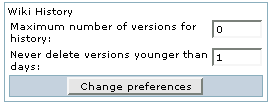
Wiki HistoryThis panel is to control the deletion of old versions of Wiki pages.Maximum number of versions for historydetermines how many versions of a Wiki page will be kept before older versions are deleted. This affects the level of undo that is possible, but also how much of the page's evolution you can see. This can be useful in a highly collaborative environment where it seems that some elements don't make sense anymore. Never delete versions younger than days can be used as a basic way to avoid vandals or to make sure that editors can review all the changes done to a page if many edits were done in a short time.
Copyright Management
Wiki Watch
Copyright 2005 Jordi Domingo i Roquer <!-- Licencia de Creative Commons --> <a rel="license" href="http://creativecommons.org/licenses/by-nc-nd/2.0/"><img alt="Licencia de Creative Commons" border="0" src="http://creativecommons.org/images/public/somerights20.gif" /></a><br /> Esta obra está bajo una <a rel="license" href="http://creativecommons.org/licenses/by-nc-nd/2.0/">licencia de Creative Commons</a>. <!-- /Licencia de Creative Commons --> <!-- <rdf:RDF xmlns="http://web.resource.org/cc/" xmlns:dc="http://purl.org/dc/elements/1.1/" xmlns:rdf="http://www.w3.org/1999/02/22-rdf-syntax-ns#"> <Work rdf:about=""> <dc:type rdf:resource="http://purl.org/dc/dcmitype/Text" /> <license rdf:resource="http://creativecommons.org/licenses/by-nc-nd/2.0/" /> </Work> <License rdf:about="http://creativecommons.org/licenses/by-nc-nd/2.0/"> <permits rdf:resource="http://web.resource.org/cc/Reproduction" /> <permits rdf:resource="http://web.resource.org/cc/Distribution" /> <requires rdf:resource="http://web.resource.org/cc/Notice" /> <requires rdf:resource="http://web.resource.org/cc/Attribution" /> <prohibits rdf:resource="http://web.resource.org/cc/CommercialUse" /> </License> </rdf:RDF> --> |
de http://doc.tikiwiki.org/tiki-index.php?page=Wiki+Admin (pujat a data 07 de març a http://doc.tikiwiki.org/tiki-index.php?page=Wiki+Admin,ca .Informar de l'evolució, a partir d'ara, a: http://doc.tikiwiki.org/tiki-index.php?page=Documentation Status,ca ).Xavier Wiki AdminTable of contents
Acces AdminPer a accedir a Administració, ves a Inici i, en el Menu (Principal), clica en "Admin (clica)".Seccions: Administració del quadre de Administració TikiTindràs accés al Quadre de Administració de Tiki Seccions, tal i com es veur en el següent gràfic:
Paràmetres de Wiki::
WikiDes del quadre de Administració, clica sobre la icona de Wiki per mostrar el seu quadre de configuració corresponent, la part superior del qual té un aspecte semblant a aquest: 
VolcatAquesta secció es pot fer servir per a generar/descarregar un volcat XHTML del teu Wiki que es podrà fer servir per navegar offline, distribuir el Wiki en un CD, presentacions fora del lloc de treball, etc.
Configuración de comentarios de Wiki
Adjuntos WikiUna página Wiki puede tener adjuntos. En este panel de control puedes configurar si los adjuntos están parmitidos y dónde se almacenan los archivos. Puedes almacenar los archivos en una base de datos o en un directorio. La ruta del directorio puede ser absoluta (exemple: /foo/bar/uploads/) o relativa al directori Tiki(exemple: ''files/")
The trailing slash is mandatory.
Wiki Admin * Wiki Admin o Admin Access o Seccions: Administració del quadre d'administració Tiki o Paràmetres del Wiki + Volcat + Crear un marcador per al Wiki actual + Restaura el Wiki + Suprimir un marcador + Configuració de comentaris de Wiki + Adjunts Wiki + Exportar pàgines Wiki + Eliminar imatges no usades + Pàgina Principal Wiki + Wiki Discussion + Wiki Link Format + Wiki page list configuration + Wiki features # Sandbox # Last Changes # Dump # History # List Pages # Backlinks # Like pages # Rankings # Undo # Multiprint # PDF generation # Comments # Spellchecking # Minor Edits # Use templates # Warn on edit # Pictures # Use page description # Show page title # Cache Wiki pages # Footnotes # Users can save to notepad # Users can lock pages # Use WikiWords? # Page creators are admin of their pages # Table syntax # Automonospaced text # Uses Slideshow + Wiki History + Copyright Management + Wiki Watch Admin Access Per accedir a la administració, ves cap a la Pàgina Principal i, al Menù, clica a "(Admin (click!)". Seccions: Tiki Admin Panel Pots accedir a les seccions de les panel Tiki Admin, com es mostra en aquestes imetges: img/wiki_up/doc.tikiwiki.org//ImgGal-ADMIN-01.png Wiki settings img/icons/admin_wiki.png Wiki From the Tiki Admin Panel, click the Wiki icon to display its settings panel, the top of which appears like so: img/wiki_up/doc.tikiwiki.org/WikiAdminDumps.png Dumps This section can be used to generate/download an XHTML dump of your Wiki that can be used for offline browsing, distributing the Wiki in a CD, off-site presentations, and so on. * Click on the links to download dumps img/wiki_up/doc.tikiwiki.org/WikiAdminDumps.png Create a tag for the current wiki * Push the button to create a tag Restore the wiki * Push the button to restore a tag Remove a tag * Push the button to remove a tag Tags: A tag is a mark in the current state of the Wiki. They can be used to save the Wiki at regular intervals and to recover the whole Wiki to a particular state if something disastrous occurred. To create a tag simply enter a tag name and click the create tag button. To restore a tag select one of the existing tags and click restore (all your Wiki pages will be lost and the saved state for the wiki will be restored!). Since tags can take a lot of space you can remove tags that you don't want to use by clicking the remove tag button after selecting the tag that you don't want to use anymore. img/wiki_up/doc.tikiwiki.org/WikiTag.png Wiki comments settings Wiki pages can have comments. In this panel you can select the default number of comments to view for Wiki pages and how comments will be sorted. * Push the button to change preferences img/wiki_up/doc.tikiwiki.org/WikiAdminComments.png Wiki attachments A Wiki page can have attached files. In this panel you can configure whether attachments are allowed and where to store the files. You can store attachments in the database or a directory. The directory path can be absolute (example: /foo/bar/uploads/) or relative to the Tiki directory (example: files/). * Click on the button to change preferences img/icons2/alert.gifThe trailing slash is mandatory. img/wiki_up/doc.tikiwiki.org/WikiAdminAttachments.png Export Wiki Pages The Export link can be used to export all your Wiki pages to a PHPWiki compatible format. Then you can import pages if you want using the Import PHPWiki Dump link in the Admin menu. Each page is exported to a file where all the versions of the page are stored in MIME format. * Click on the link to export wiki pages img/wiki_up/doc.tikiwiki.org/WikiAdminExport.png Remove unused pictures This link can be used to remove all the pictures that are stored in the Wiki pictures directory (img/wiki_up) but are not referenced in any Wiki page. * Click on the link to remove unused pictures img/wiki_up/doc.tikiwiki.org/WikiAdminRemove.png Wiki Home Page Indicates the name of the page that will be the HomePage for your Wiki. * Click on the button to set the page img/wiki_up/doc.tikiwiki.org/WikiAdminHome.png Wiki Discussion Discuss pages on forums activates a discuss button on every Wiki page that takes users to a thread in the specified forum for that particular page. The forum must be created before, if not created. This allows users to create an open discourse about pages using the public forums. If the thread for a page does not exist, Tiki creates it. Note: Wiki Discussion feature overlaps the Comments feature and was introduced because of the difficulty to spot new comments in a Wiki with many pages but this is not problematic anymore. It is similar to the Comments features and the two can be used at the same time although it is probably better to use only one. * Click on the button to change preferences img/wiki_up/doc.tikiwiki.org/WikiAdminDiscussion.png Wiki Link Format This control can be used to control recognition of Wiki links using the two parenthesis Wiki link syntax page name?. * english allows only letters, numbers, space, underscore, dash, period and semicolon (but space, dash, period and semicolon not allowed as either the first or last characters). * latin adds accented characters. * complete allows anything at all but is not guaranteed to be bug-free or secure. Note that this only affects the Wiki syntax page name?. It does not affect recognition of the Wiki naming convention of Smashed words starting with capital letters (example: ThisIsSomePage). * Push the button to set the format img/wiki_up/doc.tikiwiki.org/WikiAdminLink.png Wiki page list configuration Simply determines which columns will show in the Pages screen (available as List pages in the Wiki menu). * Push the button to set preferences img/wiki_up/doc.tikiwiki.org/WikiAdminList.png Wiki features This section can be used to enable/disable specific Wiki features. img/wiki_up/doc.tikiwiki.org/WikiAdminFeatures.png Sandbox The Sandbox page allows users to practice their Wiki page editing skills. The Sandbox is a special page where everybody has write permission and no history is saved. Last Changes This feature displays the last changes to the Wiki. Dump If enabled dumps can be used. History If enabled users can see the history of each Wiki page. List Pages If enabled users can see the list of Wiki pages--like a directory of Wiki pages. Backlinks Allows users to view a list of pages that link to the current page Like pages If enabled users can see a listing of pages named similarly to the current page. Rankings If enabled users can see several charts or rankings about the Wiki. Undo If enabled then the user who last edited a page can undo his or her edit. Multiprint If enabled a section is provided where a user can select several Wiki pages and then view them in a printer-friendly version. This can be used to print multiple pages. PDF generation If enabled Wiki pages can be converted to PDF format for printing, archiving, or other purposes. Comments If enabled Wiki pages can have comments. This feature overlaps the Wiki Discussion feature, you can read the note about Wiki pages comments/discussion at the bottom of this page. Spellchecking If enabled the spellchecker can be used for Wiki pages. Minor Edits Users with the right permission can do minor edits on Wiki pages. Minor edits are not reflected in the history and users watching the page are not notified of them. Use templates If enabled templates can be used to edit Wiki pages. The user editing a page can select one of the templates available for Wiki pages. See ContentTemplatesDoc? to learn how to create templates for wiki pages. Warn on edit If enabled then when a user is editing a page the edit button will be colored red and the name of the user editing the page will be displayed as a tooltip. If the user saves or cancels his or her edit or if the indicated amount of time passes the edit button will be displayed normally. This feature is useful to prevent collisions when editing pages. Pictures If enabled users can quickly add an image to a Wiki page by simply uploading the picture when editing a page. The picture will be stored in img/wiki_up using the name of the picture as an Id. Use page description If enabled a description can be entered when editing a page and descriptions will be displayed below the page name when viewing a page. Show page title If enabled the page title will be displayed. If disabled no title will be displayed (and it will be hard to know what page you are editing!). Cache Wiki pages If enabled then Wiki pages can be cached, so the Tiki engine will not have to parse the page content to display it. After the indicated time passes or if the page is changed, the cache is invalidated. Footnotes If enabled logged users can write personal footnotes when editing a page. The footnotes will be displayed only to the user who edited them inmediately below the Wiki page. This can be used as a good way to let users make personal notes and observations about pages. Users can save to notepad If enabled and if the user's notepad feature is enabled and if the user is logged a save icon will be shown when viewing a page, letting the user save the page to his or her personal notepad. Users can lock pages If enabled then users with permission to lock pages can lock pages and only the user who locked a page or admin can unlock it. Use WikiWords? If enabled then words using the Wiki naming convention of Smashed words will automatically become links. WikiWords? start with capital letters and include capitals in the middle of the word (example: ThisIsAWikiWord). Page creators are admin of their pages If enabled then users who create a page are also in control of that page. They have administrators rights over it. Table syntax This selects the syntax to be used for new rows in tables. Can be
r2c1|r2c2|| Automonospaced text If this is enabled, the Tiki code lines starting with at least one space are interpreted and rendered with monospaced font. Generally if you have occasional users this can get them puzzled and wondering what's happening. Uses Slideshow If enabled users can generate slideshows from structures. * Push the button, when finished to set preferences. Wiki History This panel is to control the deletion of old versions of Wiki pages. Maximum number of versions for historydetermines how many versions of a Wiki page will be kept before older versions are deleted. This affects the level of undo that is possible, but also how much of the page's evolution you can see. This can be useful in a highly collaborative environment where it seems that some elements don't make sense anymore. Never delete versions younger than days can be used as a basic way to avoid vandalsexternal link or to make sure that editors can review all the changes done to a page if many edits were done in a short time. * Push the button to set preferences. img/wiki_up/doc.tikiwiki.org/WikiAdminHistory.png Copyright Management You can use or not the Copyright Management to specify a content license under which all Wiki pages are published when submitted. License Page indicates the Wiki page containing the default license of your Wiki. It won't be created automatically. Submit Notice is seen when editing a Wiki page to indicate what content is suitable considering the license. * Push the button to set preferences. img/wiki_up/doc.tikiwiki.org/WikiAdminCopyright.png Wiki Watch The two first options automatize the monitoring of Wiki pages. Create watch for author on page creation automatically makes a page creator monitor the page he created. Enable watches on comments notifies monitorers of new comments, as for a new edit. Used less often, Enable watch events when I am the editor cancels the normal behavior which assumes that editors do not want to be notified themselves when they modify a page they are monitoring. * Push the button to set preferences. img/wiki_up/doc.tikiwiki.org/WikiAdminWatch.png Impressió múltipleSi està actiu, es proporciona una secció on un usuari pot seleccionar diverses pàgines Wiki i aleshores veure-les en una versió llesta per a imprimir. Això és pot utilitzar per a imprimir diverses pàgines.Generació de PDFSi està actiu, les pàgines Wiki es poden convertir a format PDF per impressió, arxiu, o altres propòsits.ComentarisSi està actiu, les pàgines Wiki poden tenir comentaris. Aquesta característica sobreescriu la característica Discussió Wiki, pots llegir la nota sobre comentaris/discussió de pàgines Wiki al final d'aquesta pàgina.Corrector de paraulesSi està actiu, el corrector de paraules pot usar-se per a pàgines Wiki.Edicions MenorsEls usuaris amb el permís adequat poden fer canvis menors a les pàgines Wiki. Els canvis menors no es reflexen a l'historial i no es notifiquen als usuaris que estan vigilant la pàgina.Usar plantillesSi està actiu, es poden usar plantilles per a editar pàgines Wiki. L'usuari que està editant una pàgina pot seleccionar una de les plantilles disponibles per a pàgines Wiki. Es pot llegit ContentTemplatesDoc? per a aprendre com crear plantilles per a pàgines Wiki.Avís en editarSi està actiu, aleshores quan un usuari està editant una pàgina el botó d'editar es posarà de color vermell i el nom de l'usuari que edita la pàgina sortirà com a pista. Si l'usuari salva o cancel·la la seva edició, o si passa l'espai de temps indicat,(i aqui una captura de pantalla del menu...) 
If enabled then when a user is editing a page the edit button will be colored red and the name of the user editing the page will be displayed as a tooltip. If the user saves or cancels his or her edit or if the indicated amount of time passes the edit button will be displayed normally. This feature is useful to prevent collisions when editing pages. PicturesIf enabled users can quickly add an image to a Wiki page by simply uploading the picture when editing a page. The picture will be stored in img/wiki_up using the name of the picture as an Id.Use page descriptionIf enabled a description can be entered when editing a page and descriptions will be displayed below the page name when viewing a page.Show page titleIf enabled the page title will be displayed. If disabled no title will be displayed (and it will be hard to know what page you are editing!).Cache Wiki pagesIf enabled then Wiki pages can be cached, so the Tiki engine will not have to parse the page content to display it. After the indicated time passes or if the page is changed, the cache is invalidated.FootnotesIf enabled logged users can write personal footnotes when editing a page. The footnotes will be displayed only to the user who edited them inmediately below the Wiki page. This can be used as a good way to let users make personal notes and observations about pages.Users can save to notepadIf enabled and if the user's notepad feature is enabled and if the user is logged a save icon will be shown when viewing a page, letting the user save the page to his or her personal notepad.Users can lock pagesIf enabled then users with permission to lock pages can lock pages and only the user who locked a page or admin can unlock it.Use WikiWords?If enabled then words using the Wiki naming convention of Smashed words will automatically become links. WikiWords? start with capital letters and include capitals in the middle of the word (example: ThisIsAWikiWord).Page creators are admin of their pagesIf enabled then users who create a page are also in control of that page. They have administrators rights over it.Table syntaxThis selects the syntax to be used for new rows in tables. Can be || or "\n" (line break).Example of both ways for inserting a new row
Automonospaced textIf this is enabled, the Tiki code lines starting with at least one space are interpreted and rendered with monospaced font. Generally if you have occasional users this can get them puzzled and wondering what's happening.Uses SlideshowIf enabled users can generate slideshows from structures.
Wiki HistoryThis panel is to control the deletion of old versions of Wiki pages.Maximum number of versions for historydetermines how many versions of a Wiki page will be kept before older versions are deleted. This affects the level of undo that is possible, but also how much of the page's evolution you can see. This can be useful in a highly collaborative environment where it seems that some elements don't make sense anymore. Never delete versions younger than days can be used as a basic way to avoid vandals or to make sure that editors can review all the changes done to a page if many edits were done in a short time.
Copyright Management
Wiki Watch
Copyright 2005 Clara / Jordi Domingo i Roquer <!-- Licencia de Creative Commons --> <a rel="license" href="http://creativecommons.org/licenses/by-nc-nd/2.0/"><img alt="Licencia de Creative Commons" border="0" src="http://creativecommons.org/images/public/somerights20.gif" /></a><br /> Esta obra está bajo una <a rel="license" href="http://creativecommons.org/licenses/by-nc-nd/2.0/">licencia de Creative Commons</a>. <!-- /Licencia de Creative Commons --> <!-- <rdf:RDF xmlns="http://web.resource.org/cc/" xmlns:dc="http://purl.org/dc/elements/1.1/" xmlns:rdf="http://www.w3.org/1999/02/22-rdf-syntax-ns#"> <Work rdf:about=""> <dc:type rdf:resource="http://purl.org/dc/dcmitype/Text" /> <license rdf:resource="http://creativecommons.org/licenses/by-nc-nd/2.0/" /> </Work> <License rdf:about="http://creativecommons.org/licenses/by-nc-nd/2.0/"> <permits rdf:resource="http://web.resource.org/cc/Reproduction" /> <permits rdf:resource="http://web.resource.org/cc/Distribution" /> <requires rdf:resource="http://web.resource.org/cc/Notice" /> <requires rdf:resource="http://web.resource.org/cc/Attribution" /> <prohibits rdf:resource="http://web.resource.org/cc/CommercialUse" /> </License> </rdf:RDF> --> |
||||||||||||||||||||||||||||||||||||||||||||||||||


History
Col·laboren

Traduccions automàtiques

